BKF Restore - How to Restore BKF Files?

SysTools BKF Repair software supports to repair & restore bkf files in a simple 3 steps. Here are the detailed steps to repair corrupt BKF files:

(STEP - 1)

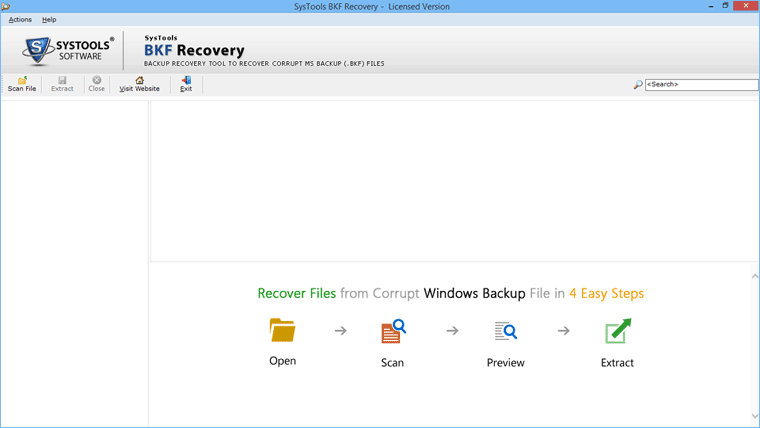
Go to Start » Programs » SysTools BKF Repair. Open SysTools BKF Repair, start-up screen appear as follows:

BKF Recovery Tool

(STEP - 2)

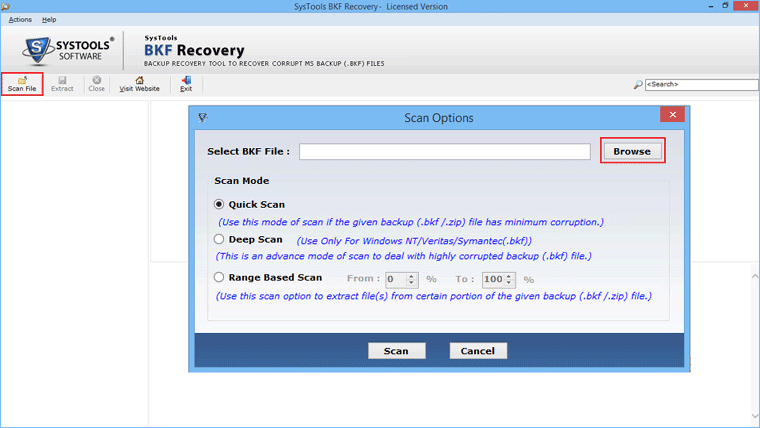
Then you can choose an option and can click on Deep Scan or Quick Scan button to start the recovery process software as in the screen below.

BKF Repair Tool

Deep Scan: It does scan the corrupt BKF file in 2 phases which is unique in the industry allows better rate of recovery for a corrupt BKF file. Click on Deep Scan button for in-depth recovery.

Quick Scan: It does scan the corrupt BKF in 1 phase to quickly recover BKF data. Please click on Quick Scan button for fast recovery.

Note: We recomenned you to please perform Deep Scan on your corrupt BKF file. In such cases Quick Scan does not get 100% data.

(STEP - 3)

After that it will ask you to select the corrupt bkf file for repairing as showing in the below screen, you have to click on "Open" to select the backup file
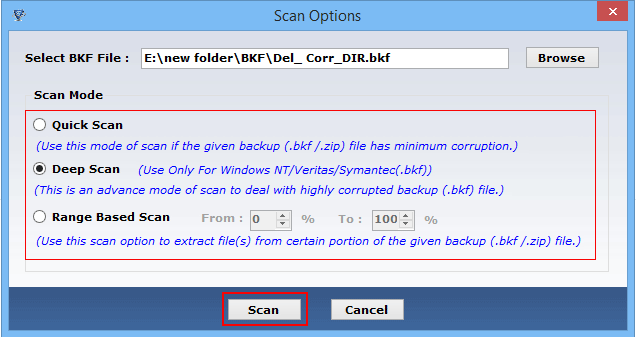
 

Repair BKF File

(STEP - 4)

Then software start loading process to load the selected BKF file as shown below:
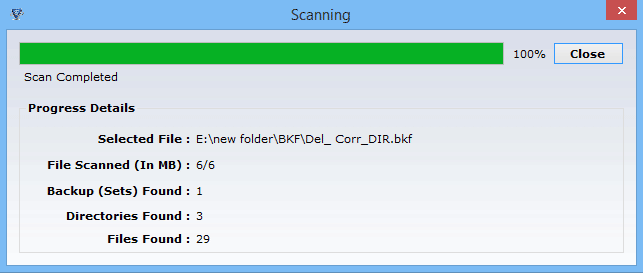
Repair Corrupt BKF

(STEP - 5)

After loading process completes, software displays the following screen and by doing "Right Click" on any file you can view data inside the file as shown below:
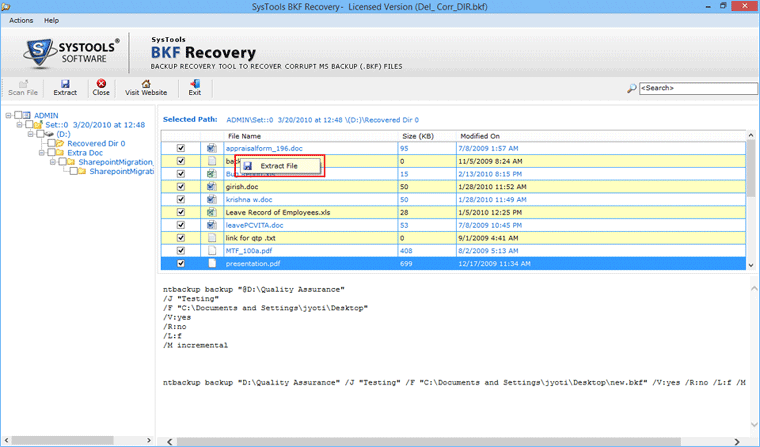
BKF Recovery

(STEP - 6)

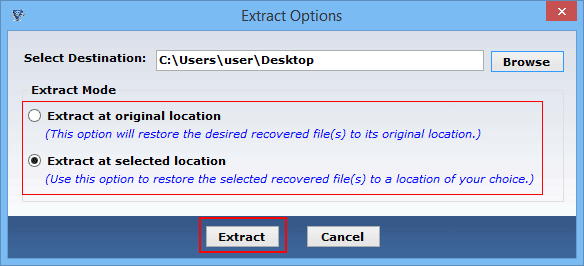
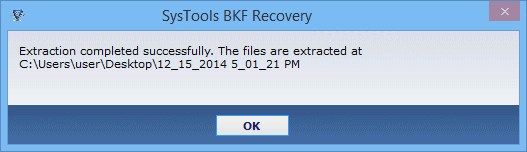
After this, click "Extract button" to save or extract the files & folders from corrupt BKF files.

Recover BKF File

As you click on Extract button software will ask you to locate the location to "Save" the files as shown below:

(STEP - 7)

How to Load another BKF file?

To Repair another corrupt bkf files, users need not to start from the start up screen. Choose the BKF file from the left tree structure, right click ans choose Close Backup File option

Repair BKF File

After software closes the backup file, Click Load button to load another file.

(STEP - 8)

For performing Range Based Scan function, click on the “Actions” menu and select "Range Based Scan" option from the drop down menu as shown below: 

Recover BKF File


In the updated version 5.4 of SysTools BKF Repair software, a new feature has been added. It is of "Range Based Scan". This feature is helpful to you while recovering data from large BKF files. With the help of this feature, you will be able to extract only some percentage of data rather than recovering complete data from the large BKF file that wastes your time. You can quickly do range based scan if you want to extract only a small portion of data from any large sized BKF file.

(STEP - 9)

As you click on the Range Based Scan option, you will see the following window:  

BKF Repair Tool

Select a value from default value

What is this value? This value is basically the percentage of data that will be extracted from the selected large sized BKF file. (For example – if you enter the value as “25”, then the software will recover 25% of data from the selected BKF file.

(STEP - 10)

After Range Based Scan completes, you can preview the selected files as shown below.

Recover BKF File

Site Powered by: SysWare CMS - Complete Site Management Solution
Google Sitemap